> ## Documentation Index
> Fetch the complete documentation index at: https://docs.alphacalibration.com/llms.txt
> Use this file to discover all available pages before exploring further.
# Client Reporting
> This page describes how to generate client reports.
# Introduction
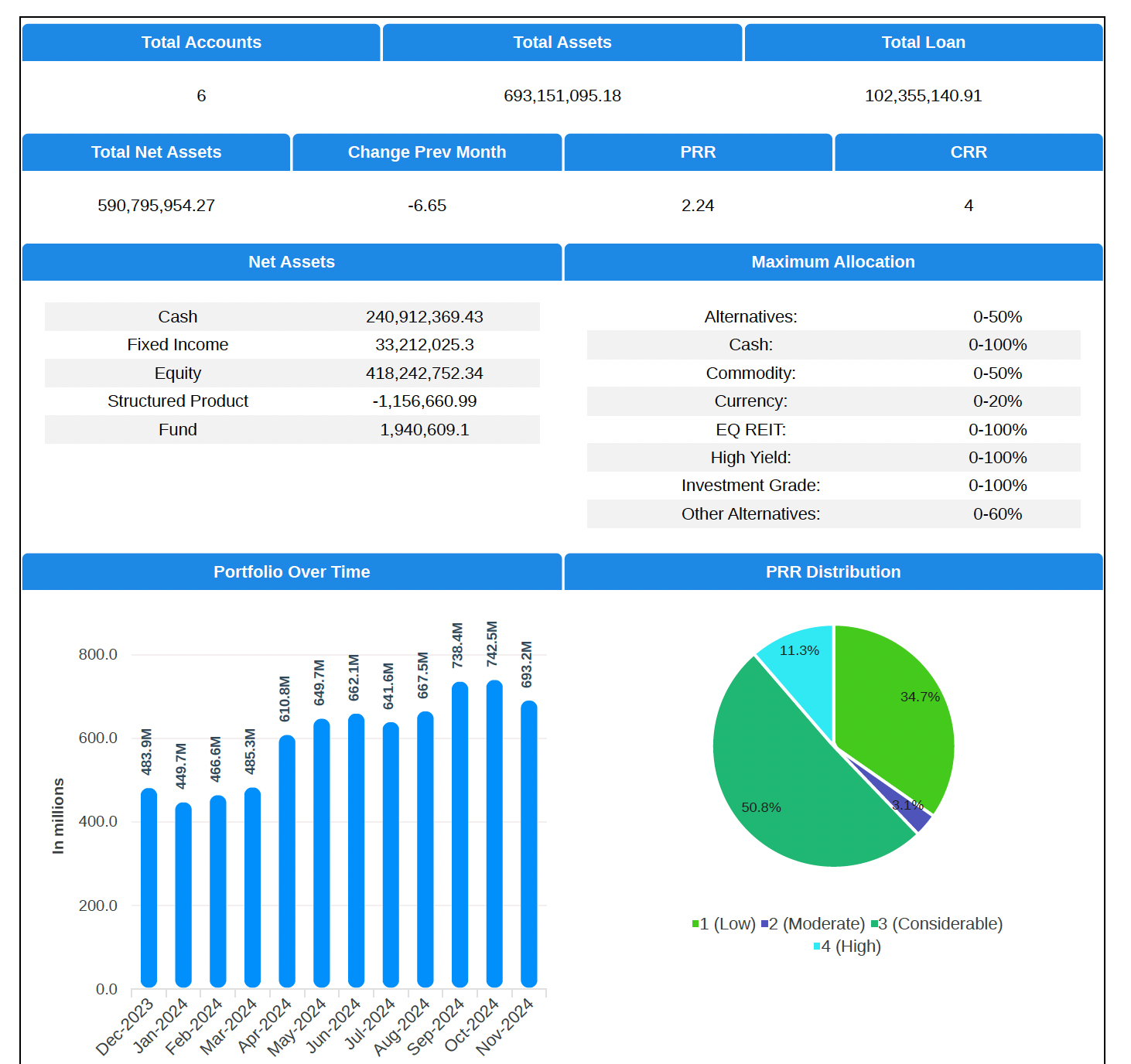
This section shows how to aggregate a client's positions across multiple brokers and custodians and reporting on their performances.
 # Holdings and Transactions
Obtaining holdings and transactions data is the key to providing proper client reporting. This is normally a difficult process because the data received from brokers and custodians are not standardised and it is necessary format the data for the system.
Please contact us if would like us to help you automate the retrieval and standardisation of your statements.
Step 1: Upload the holdings and transaction data into the system by navigating to 'Sharepoint Views / Tables'.
Tables also allow you to edit the table held in the system directly.
# Holdings and Transactions
Obtaining holdings and transactions data is the key to providing proper client reporting. This is normally a difficult process because the data received from brokers and custodians are not standardised and it is necessary format the data for the system.
Please contact us if would like us to help you automate the retrieval and standardisation of your statements.
Step 1: Upload the holdings and transaction data into the system by navigating to 'Sharepoint Views / Tables'.
Tables also allow you to edit the table held in the system directly.
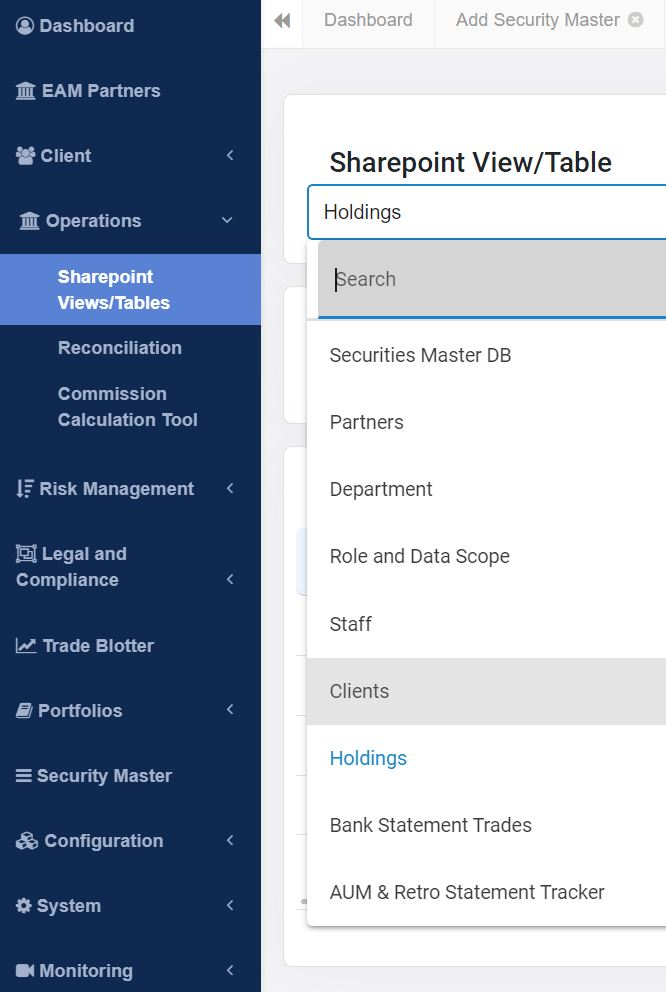 Here you will see a variety of tables.
After selecting the relevant table, you will be able to see the content.
Here you will see a variety of tables.
After selecting the relevant table, you will be able to see the content.
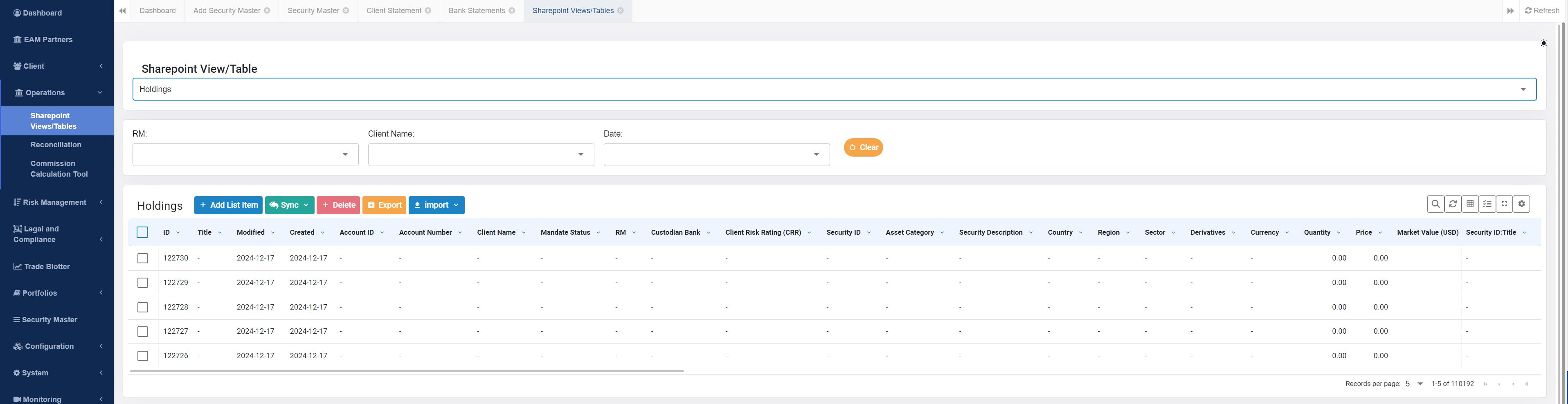 Step 2: It is possible to add holdings information individually or via bulk upload
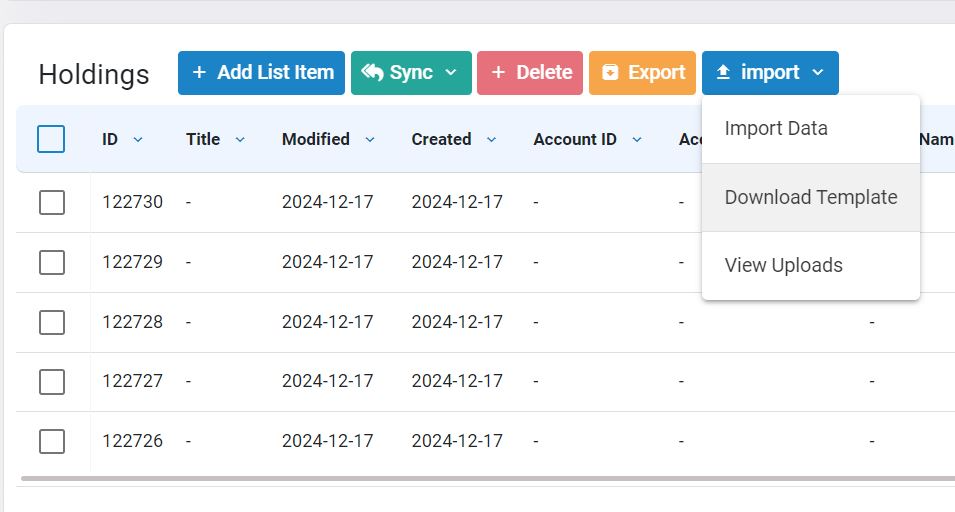 When performing a bulk upload, be sure to use the provided template, which is available in excel format.
# Client Statements
Navigate to the 'Client Statement' item of the sidebar.
When performing a bulk upload, be sure to use the provided template, which is available in excel format.
# Client Statements
Navigate to the 'Client Statement' item of the sidebar.
 Select the client and date range to generate the client statement form.
